Full length ring-tones on the iPhone!
In this post i will be showing you how to setup one of the songs lying around in your iTunes library as your ringtone on the iPhone.
Please note this NEEDS a jailbroken device.
First, you will need to find the song/track in iTunes.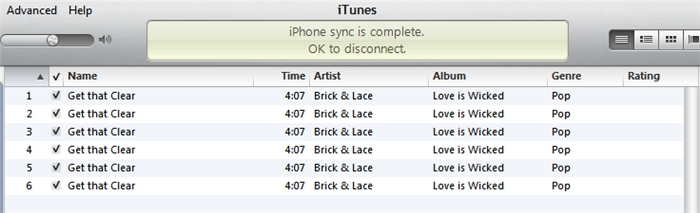
As you can see, i have done this many times before. To continue, right click on the track and press Create AAC Version.
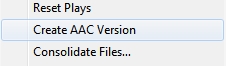
It will then go ahead and convert the audio file for you…

You must now right click on the NEW track that was created (in this example it is #7) and press Show in Windows Explorer. A windows explorer should now open and you should then rename the extension to “.m4r”

You must now give the file a short name, in this example i will rename the file “Get that clear”. Please ensure you do NOT delete the .m4r extension while renaming.
Once you have done all this, you must upload the file to your iPhone under the following folder: “/Library/Ringtones”
The tutorial on how to access the file structure can be found at the following link:
/blog/accessing-the-iphone-file-structure/
Then respring OR reboot your device and check if your new ringtone is in place! To do this we must go to Settings -> Sounds and you should see a ringtone called “Get that clear”.
Here is my iPhone with the song we just converted:
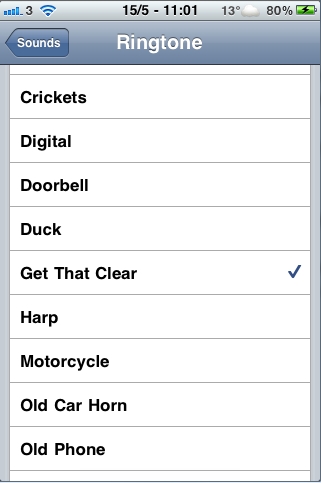
This was done on iOS 4.3.3 – I should be updating this post if there is a new version out because i have to repeat all these steps for a custom ringtone when i update my iPhone 😉
[UPDATE 26.10.11] Video added!